Sometimes it is necessary to publish applications fitted inside docker images to the local docker registry without publishing them to the central Docker Hub.
Usually, these cases cover situations of local testing and debugging when you want to create a specific environment using docker-compose and test your application against this environment.
Our example uses Scala application and sbt-native-packager to create a docker image. SBT uses the task named publishLocal to publish assets to local Ivy/Maven repositories (this is something that only exists on your machine). This plugin does nothing more than maps docker:publishLocal to docker build -t command. The Docker support in sbt-native-packager tries to use the same task in a Docker context, so that sbt docker:publishLocal builds an image on your local Docker server. Just like publishing to Ivy or Maven locally, this action allows the image to be visible locally for development but does not make it visible outside your local machine (see the full answer here).
After publishing, you can run your image with docker run but only on the local machine. Our goal for today is to make the image visible for docker-compose and from other hosts.
build.sbt / plugins.sbt definitions
First of all, let’s take a look at build.sbt. We need a few important definitions here:
Docker / version := "0.0.2" – this line stands for the tag for the result docker image;
dockerRepository := Some("localhost:5000") – this line defines the target docker registry instance (we will cover this topic later);
You also have to provide the following line in your plugins.sbt file:
addSbtPlugin("com.github.sbt" % "sbt-native-packager" % "1.9.4")
Run your local docker registry instance
The next step is to run the docker registry image:
docker run -d -p 5000:5000 --restart=always --name registry registry:2
This command will start a docker container with the docker registry on your local machine.
Create Wincred credentials for local registry
Seems that Docker Desktop uses Wincred as credentials storage. Add a new line to Windows Credential Manager with username and password for the localhost:5000.

Edit docker-compose.yml
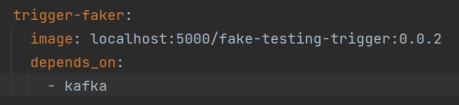
In order to pull the docker image from the local registry you should define its hostname and port in your docker-compose file:
Push your image to local registry
Run sbt console in your application root and run docker:publish:

Run docker-compose
We’re almost finished! Change your working directory to a folder that contains a docker-compose.yml and run docker login localhost:5000:

Type in your credentials from wincred if needed.
Finally, run docker-compose up and wait until all images will be pulled and started. Congratulations, you got it!